
Corporate Membership FAQ
Corporate Membership Manager - How-to
At RMAEP we are always trying to better serve our members. One change we've made is to create a corporate member management module. It will no longer be necessary for our corporate members to have to reach out to us to make changes to members or to renew. That can all now be done by you. Here is how you create a corporate membership in the updated module.
1. From the home page, Select Join RMAEP from the Membership menu, or click here.

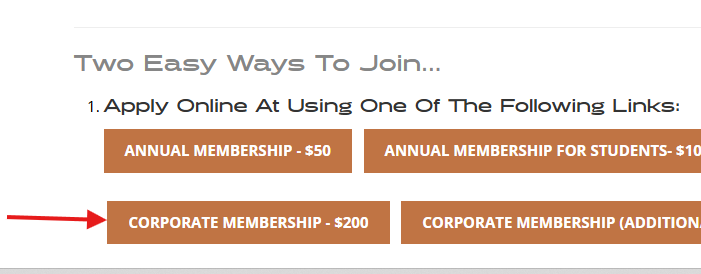
2. Next, select the Corporate Membership button
3. You will be prompted to enter membership information. Required fields are marked with an asterisk but you can fill out as much additional information as you want. Submit the form. You will not be prompted to pay at this point.
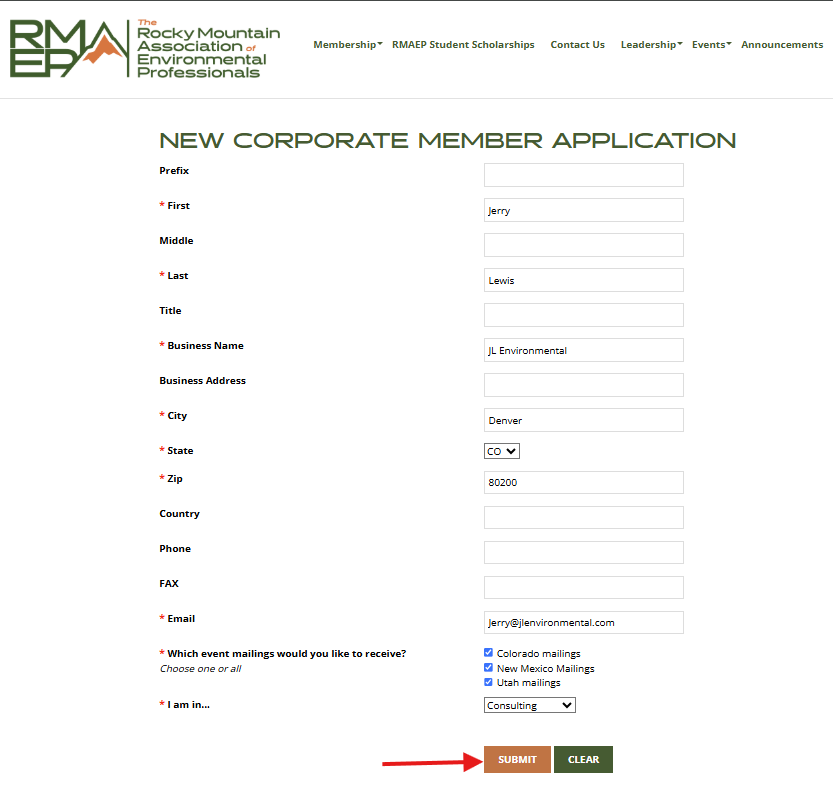
4. Once the form is submitted we will be notified to create the basic corporate membership. Once that is completed, we will notify you to complete the process.

5. When you receive notification that the membership is ready to be completed, start by accessing the Corporate Membership Manager, which is under the Membership menu dropdown.

6. You will be prompted to log in. Use the email address you entered in Step 3 above. If you are already a member of RMAEP, use your existing password. If you are new to RMAEP, you will need to click "Forgot Username/Password?" to reset your password.

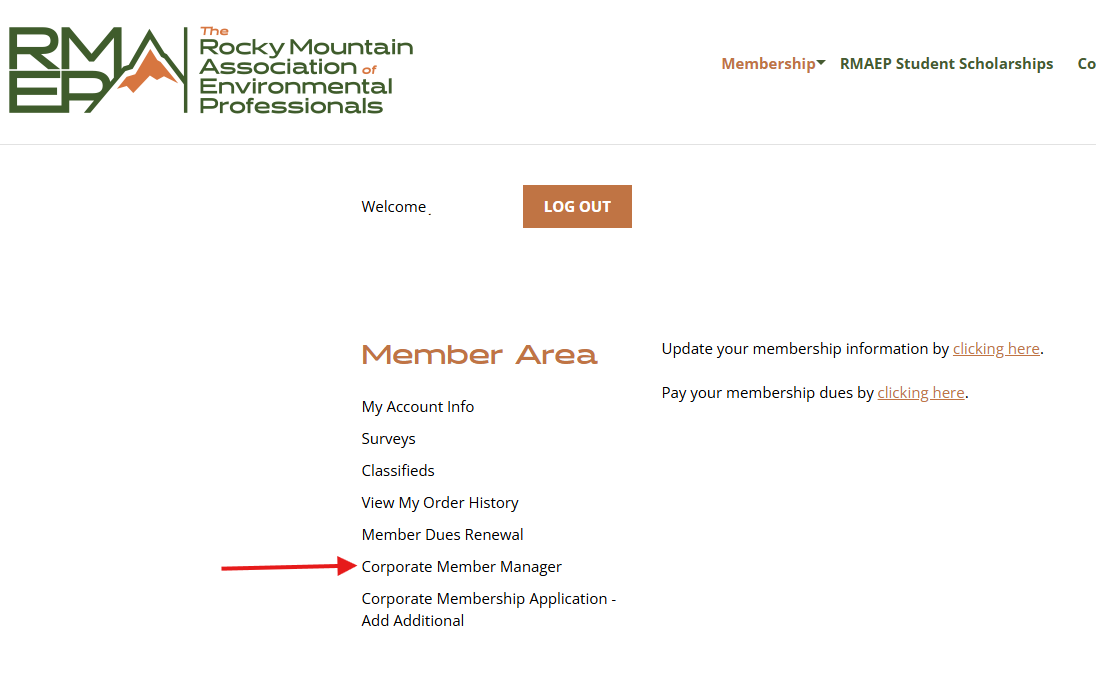
7. Once you are logged into the member area, select the Corporate Member Manager from the lefthand column
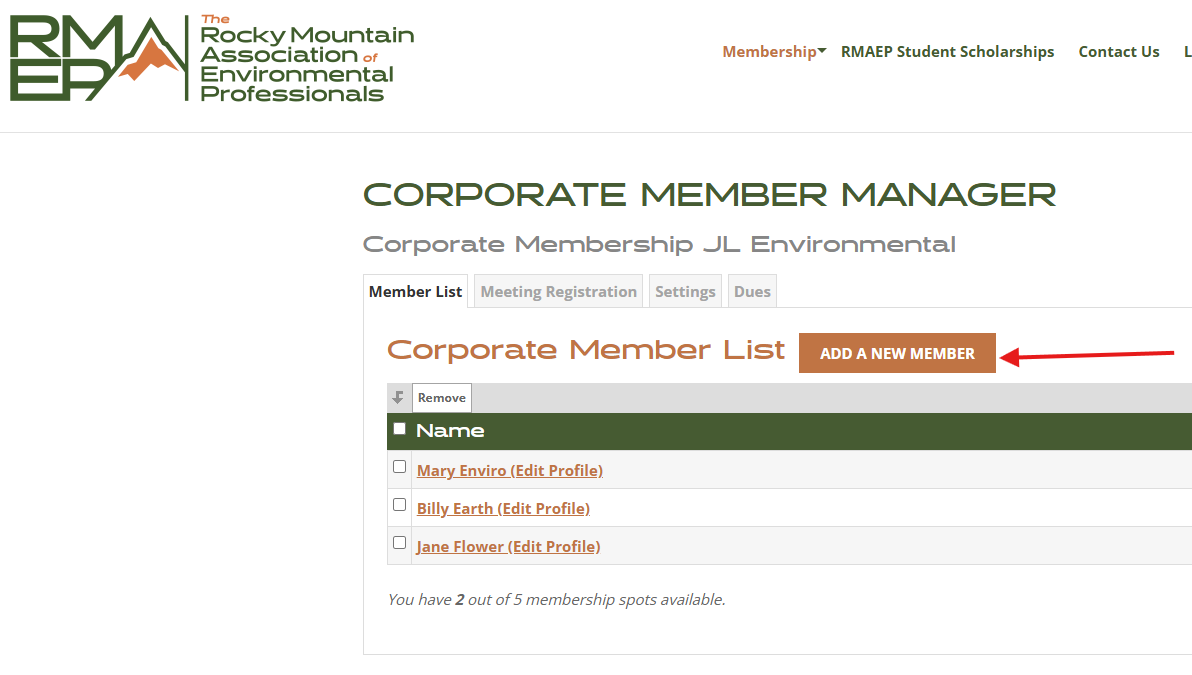
8. Once in the Corporate Member Manager, you can add members. Click the Add A New Member button
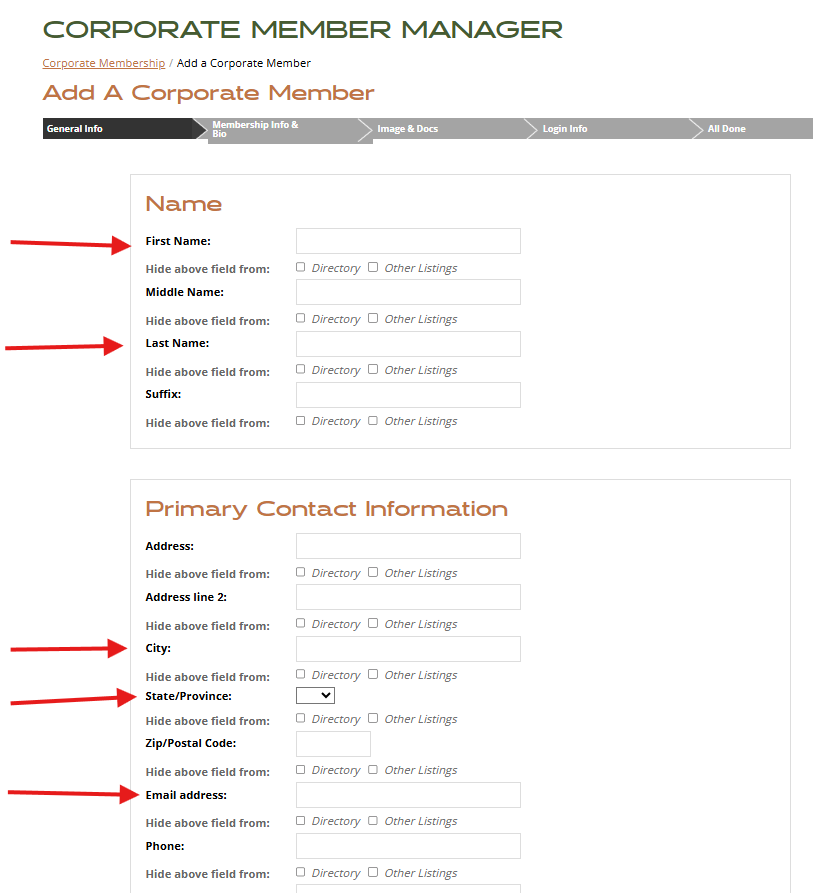
9. Fill out the fields for each member. Required fields do not have an asterisk in this screen, but are identified with the red arrows below. Click Next.
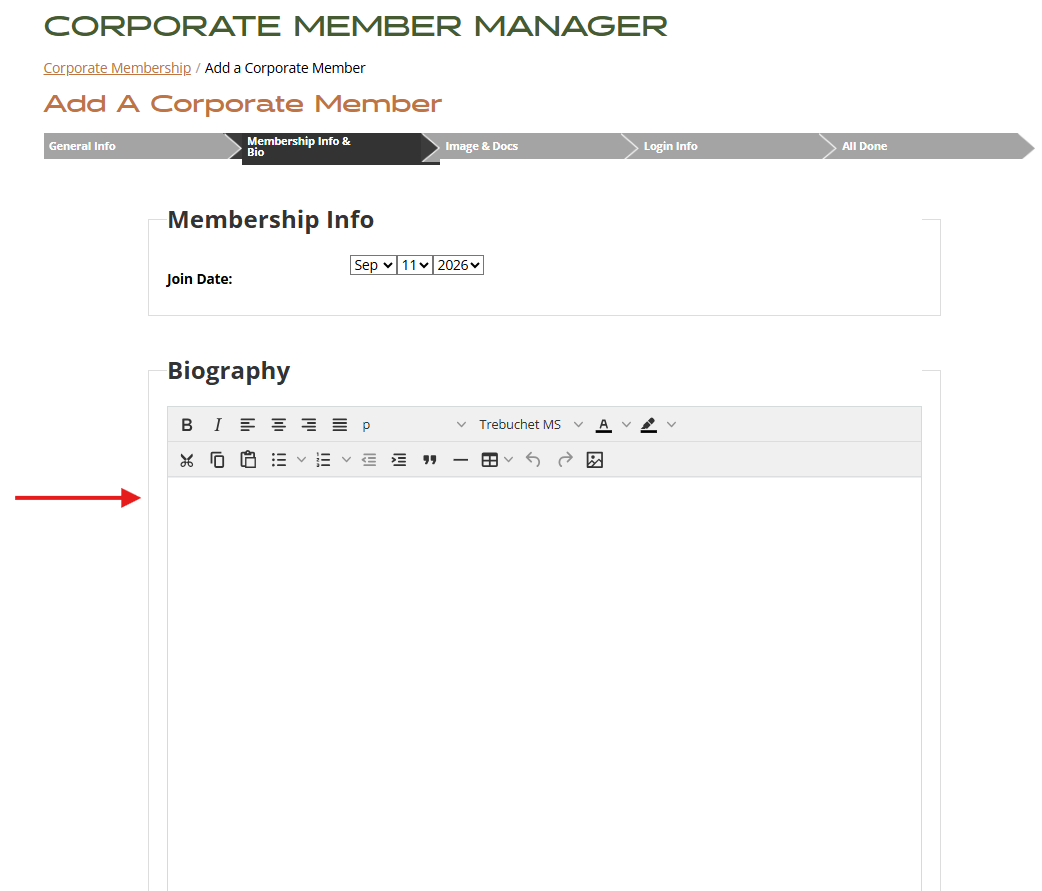
10. Go to the next screen, Membership Info and Bio. The join date is today's date. Note that the Bio field is required. This is a known bug in the module. You don't have to enter anything meaningful. Any character or characters will work. Click Next.
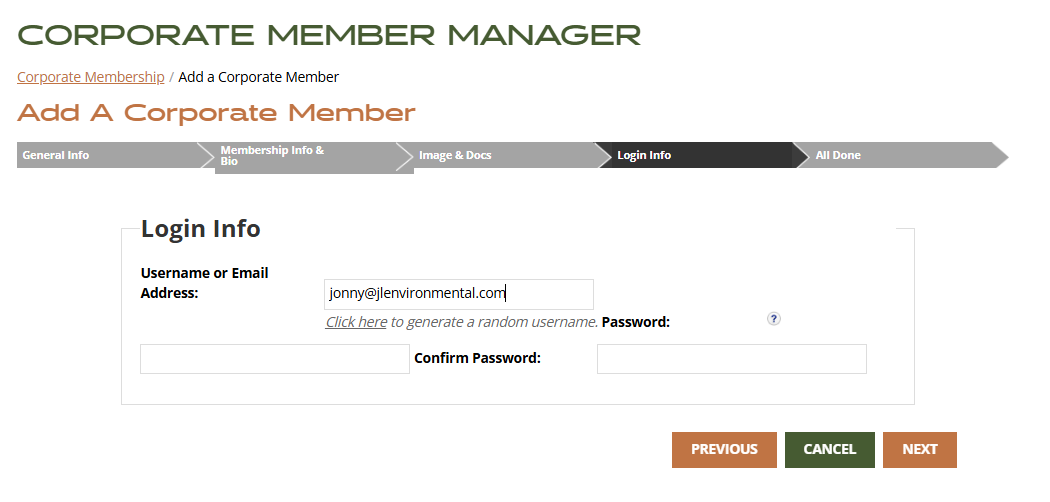
11. Next enter the member's email address and assign a password. Note that the error related to the password is a known bug in the module. As long as the password is over 8 characters, that is adequate, but the error message will not clear. Confirm the password in the next prompt. Click Next.
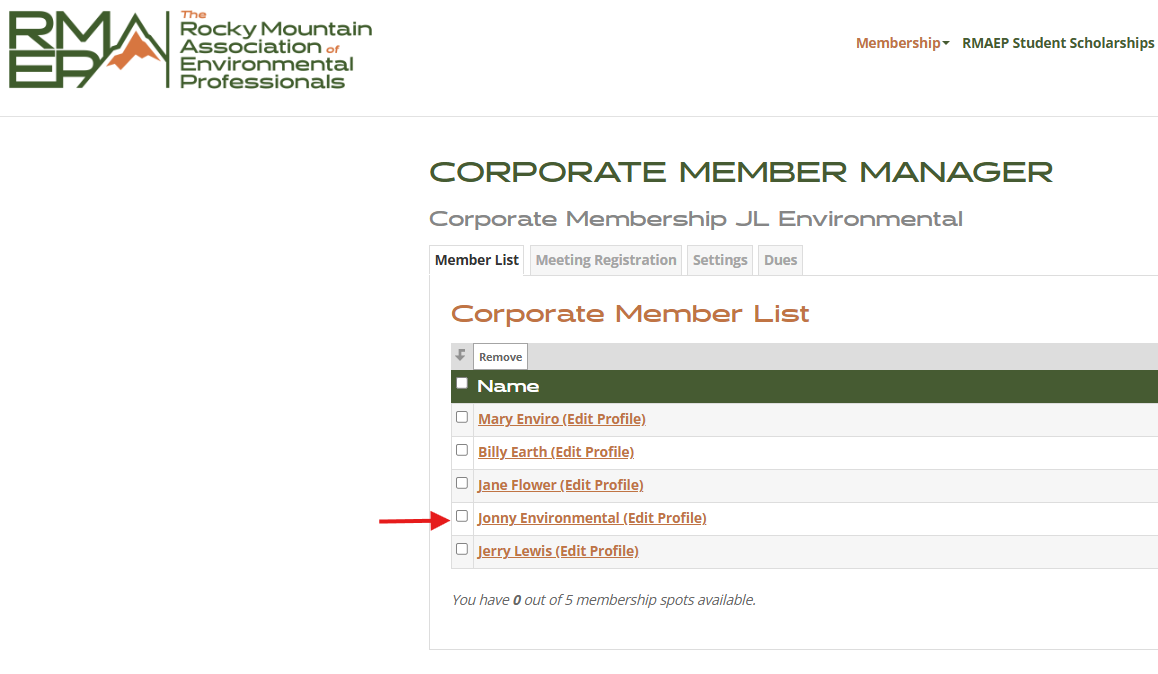
12. The new member should now appear in the Corporate Member List. If you plan to attend events, make sure you are one of the members!
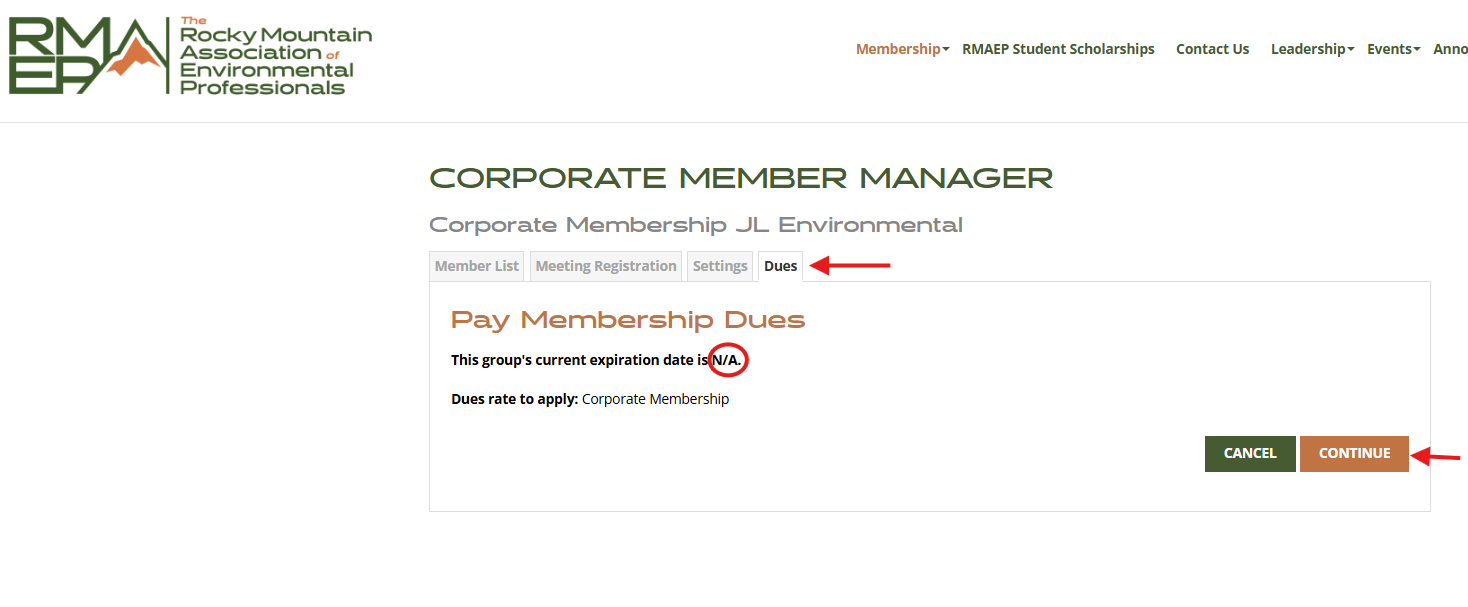
13. To pay dues and activate the corporate membership and those of the members, click the Dues tab. Note that the expiration date is set to "N/A" at first. The actual expiration date will be set to one year after the corporate membership dues are paid. Click Continue.
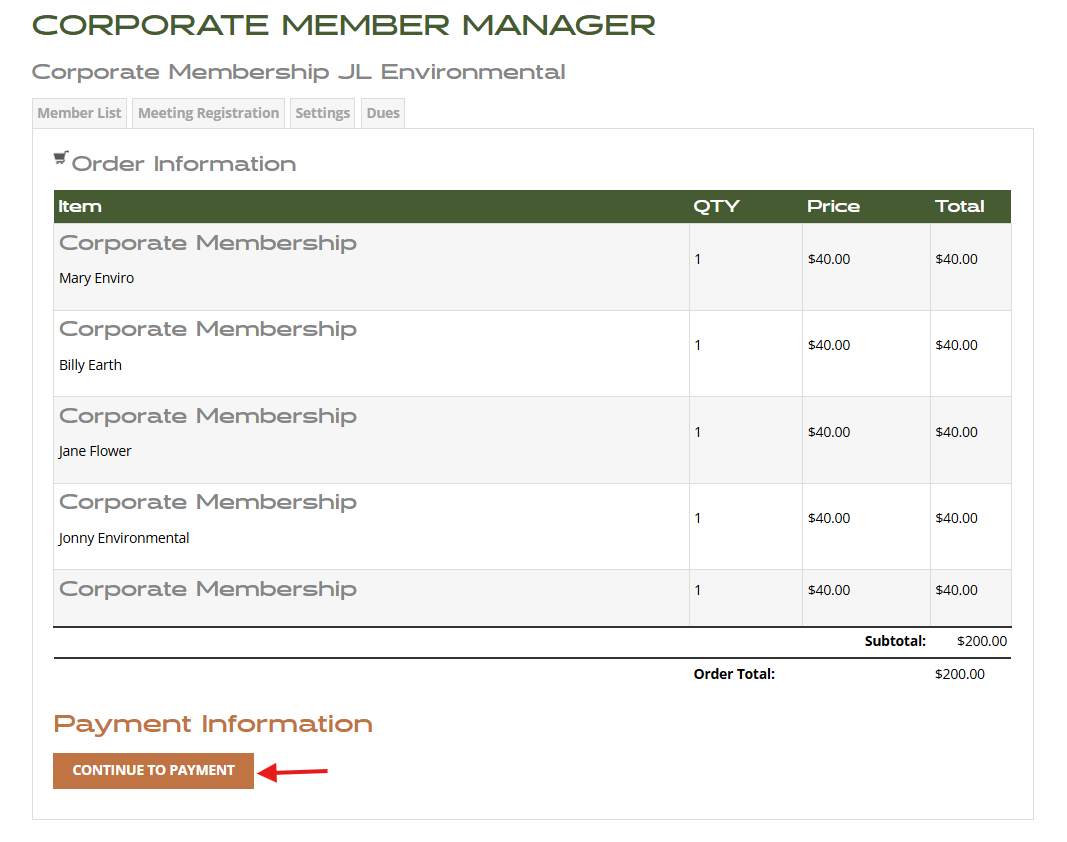
14. The order information screen will show the up to 5 people on the corporate membership. Click Continue to Payment.
Now that the membership is set up and paid for, the primary contact (the person that completed Step 3) can log in and renew the membership and update individual members.
If you have questions about the Corporate Member Manager, contact us here.
